
Your business journal · 2026 edition
vitePOS,
the user guide
Everything you need to run the till, the stock and the books of your business, from morning to night, even when the network drops.
Getting started
Your till ready in 5 minutes
No software to buy, no app store: vitePOS opens in your phone's browser, then installs on the home screen like a real app.
- Open app.viteposrdc.com and tap the yellow « Créer un compte gratuit » button (create a free account): your e-mail or your Google account.
- Choose « Gérer mon activité » (manage my business): the business name, the currency of your prices and the daily rate (how many FC for 1 $). Customers pay in euros? Tick « J'accepte aussi les euros » (I also accept euros).
- Tap « Créer mon activité » (create my business): a free trial, every feature included. On the home screen, the « Premiers pas » list (first steps) guides you to your first sale.
- On the home screen, the « Installer vitePOS » card guides you: the « Installer » button on Android, or Share → « Add to Home Screen » in Safari on iPhone.
Your team
One account each, with the right permissions
Your sellers never use your account. Each has their own: you know who sold what, and a seller never sees your purchase prices or your margins.
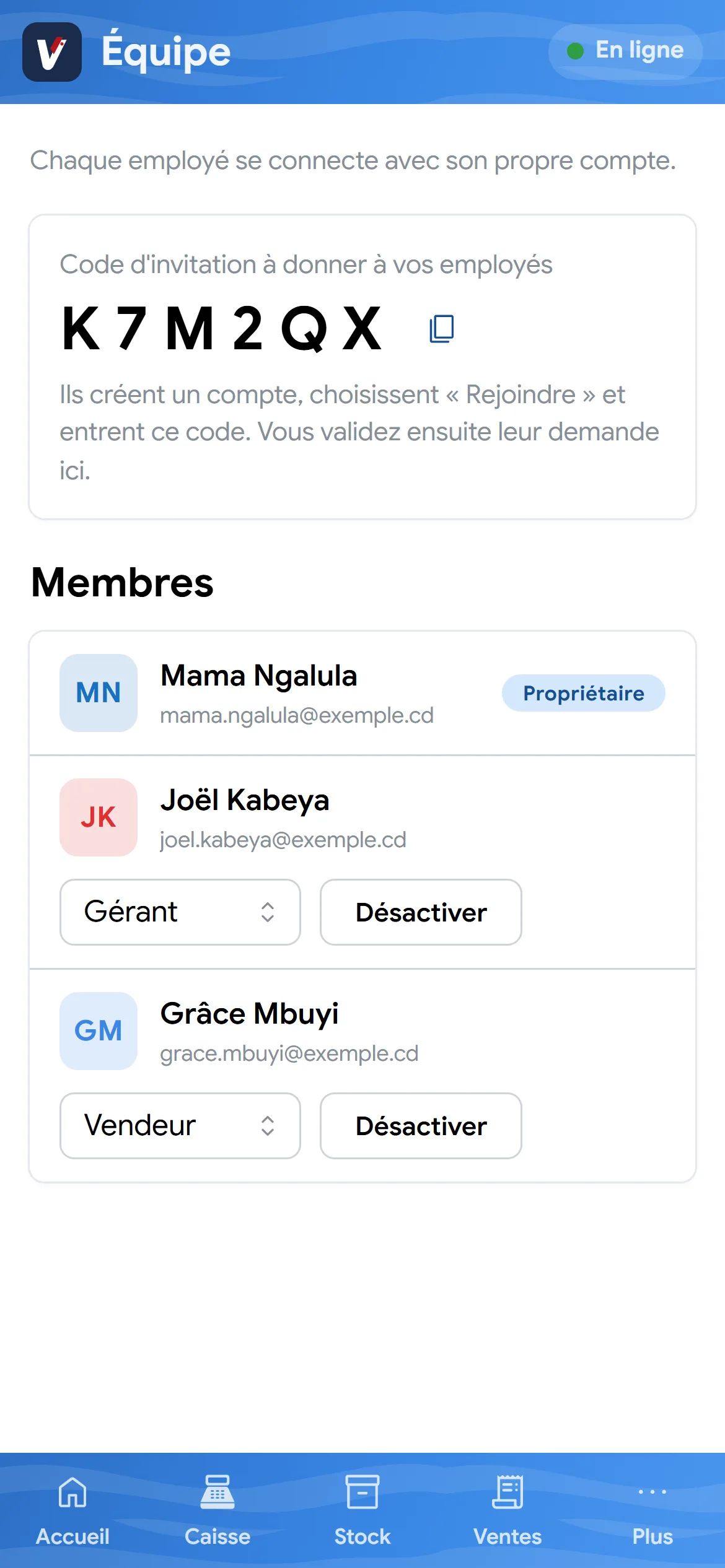
- Go to Plus → Équipe (team): you will find the 6-character invitation code.
- Your employee creates an account on their phone, chooses « Rejoindre » (join) and enters the code.
- The request appears under « Demandes à valider »: tap « Valider » (approve) or « Refuser » (decline).
- They join « Membres » as a seller: change their role to Gérant (manager) if needed.
| Role | Sells | Sees reports | Changes prices | Closes the till | Manages stock |
|---|---|---|---|---|---|
| Owner | Yes | Yes | Yes | Yes | Yes |
| Manager | Yes | Yes | Yes | Yes | Yes |
| Seller | Yes | No | No | No | No |
Francs, dollars, euros
The daily rate, set by the owner
Your prices stay in your currency. The customer pays in francs, dollars or euros: vitePOS converts at the daily rate and works out the change.
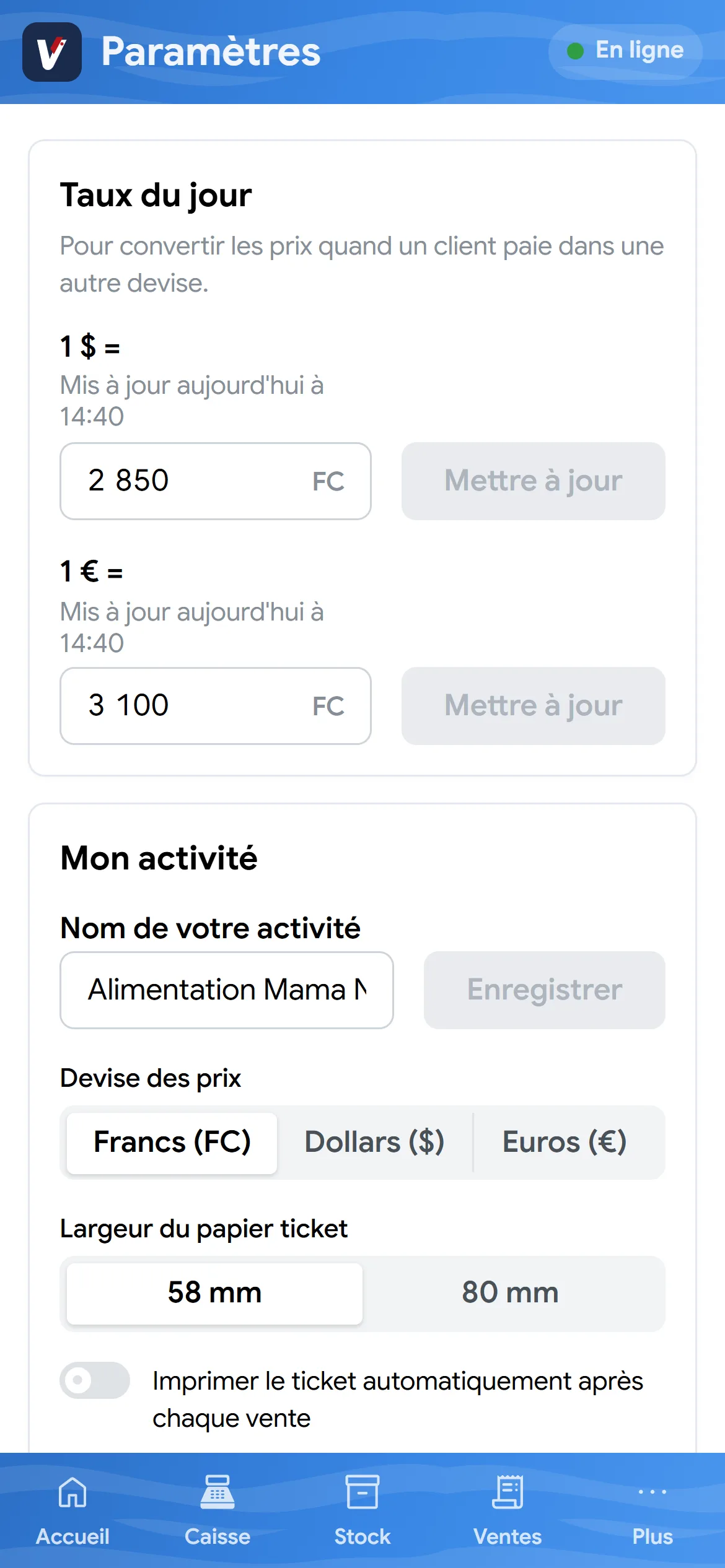
- Go to Plus → Paramètres (settings): Taux du jour (daily rate) is the first block.
- Next to « 1 $ = », type how many francs one dollar is worth (for example 2,850), then tap « Mettre à jour » (update).
- Customers paying in euros? Do the same next to « 1 € = ». Otherwise leave it empty: the euro will not appear anywhere.
- Under each rate, the app shows « Mis à jour aujourd'hui à 08:15 » (updated today at 08:15): you see at a glance if it dates from yesterday.
- The new rate shows straight away on the home screen and at the till for every seller.
Stock
Every item has its own card
An item code to find your way, the manufacturer's barcode to go fast, and packs or cartons to sell wholesale. Your Excel list imports in one go: Stock → « … » → « Importer depuis Excel » (import from Excel).
- In Stock, tap « Ajouter » (add). Choose the category: the item code is suggested for you (LAI-001, LAI-002… for milks).
- Scan the item's barcode with the camera button in the field, or type it.
- Enter the selling price, the purchase price, the unit (piece, kg or litre), the opening stock and the alert level.
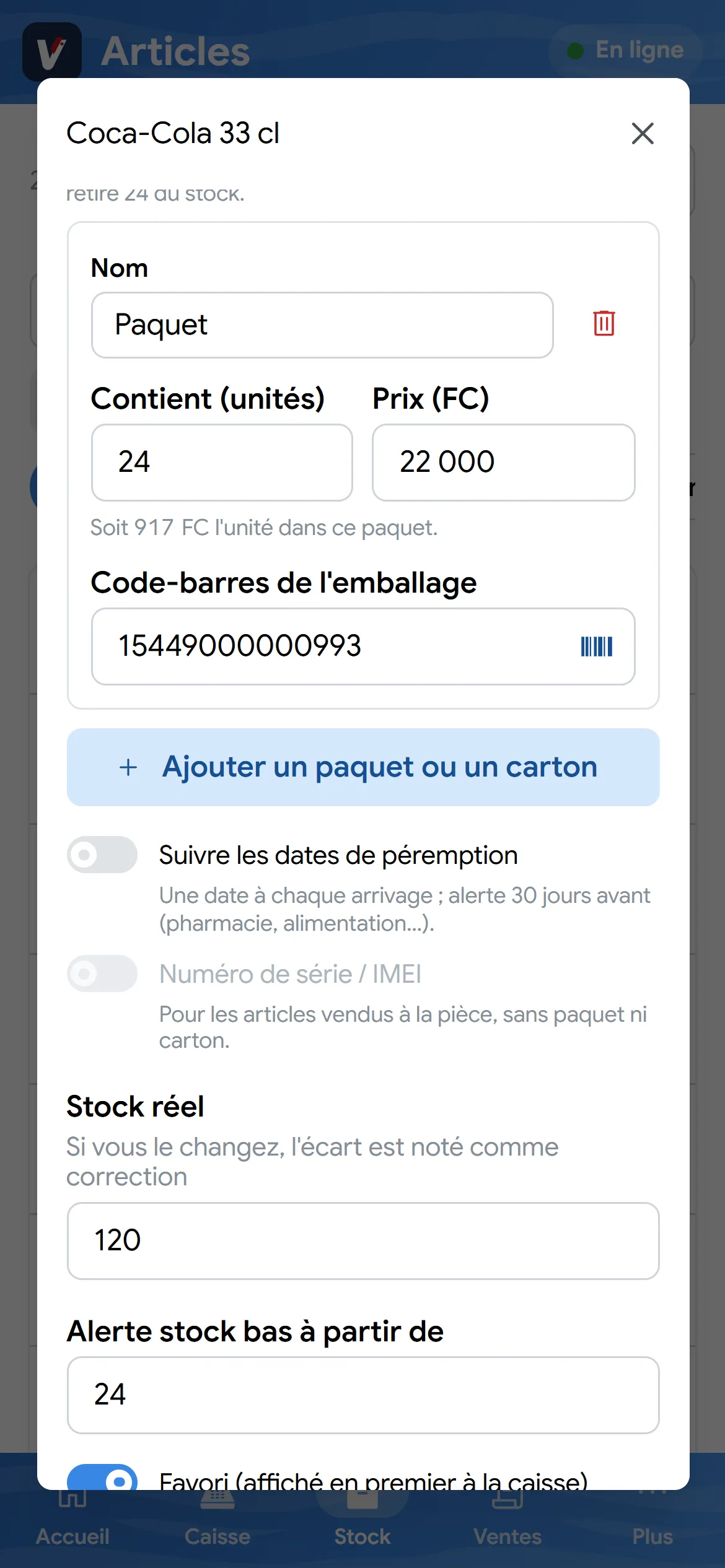
- Also selling wholesale? Under « Emballages » (packs), tap « Ajouter un paquet ou un carton »: how many units it holds, its price and its own barcode.
- Pharmacy or groceries? Turn on « Suivre les dates de péremption » (track expiry dates): a date is recorded with each delivery, and the app warns you 30 days before (Home, and Stock → Péremption).
- Phones? Turn on « Numéro de série / IMEI » and enter the warranty in months: each device received is recorded by its IMEI.
Deliveries
Receive goods in three moves
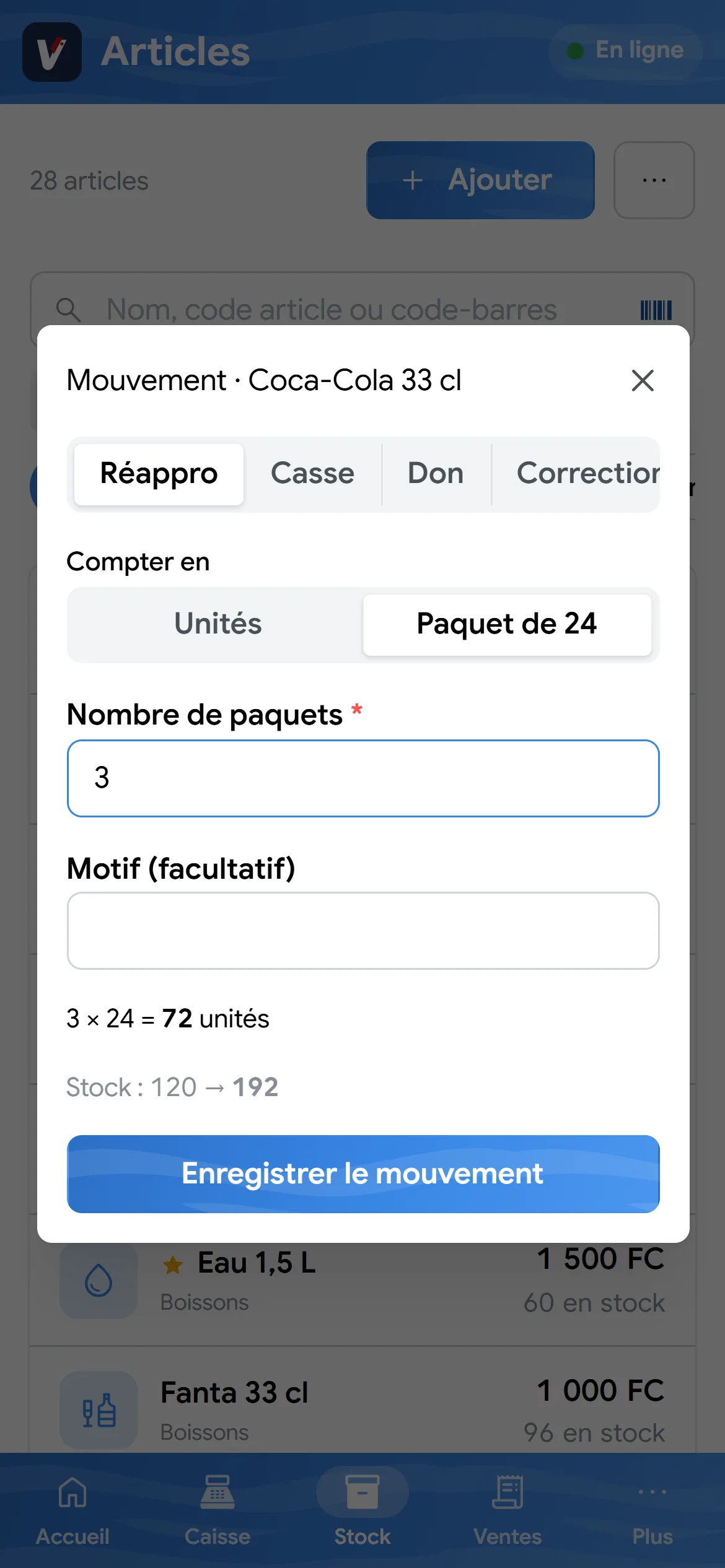
The supplier delivers 3 packs of Coke? No need to count 72 bottles.
- In Stock, scan the barcode of the pack.
- The Mouvement window opens on « Réappro » (restock), counted in « Paquet de 24 ».
- Type 3: the app shows « 3 × 24 = 72 unités » and the resulting stock. Tap « Enregistrer le mouvement ».
In the morning
Open the day
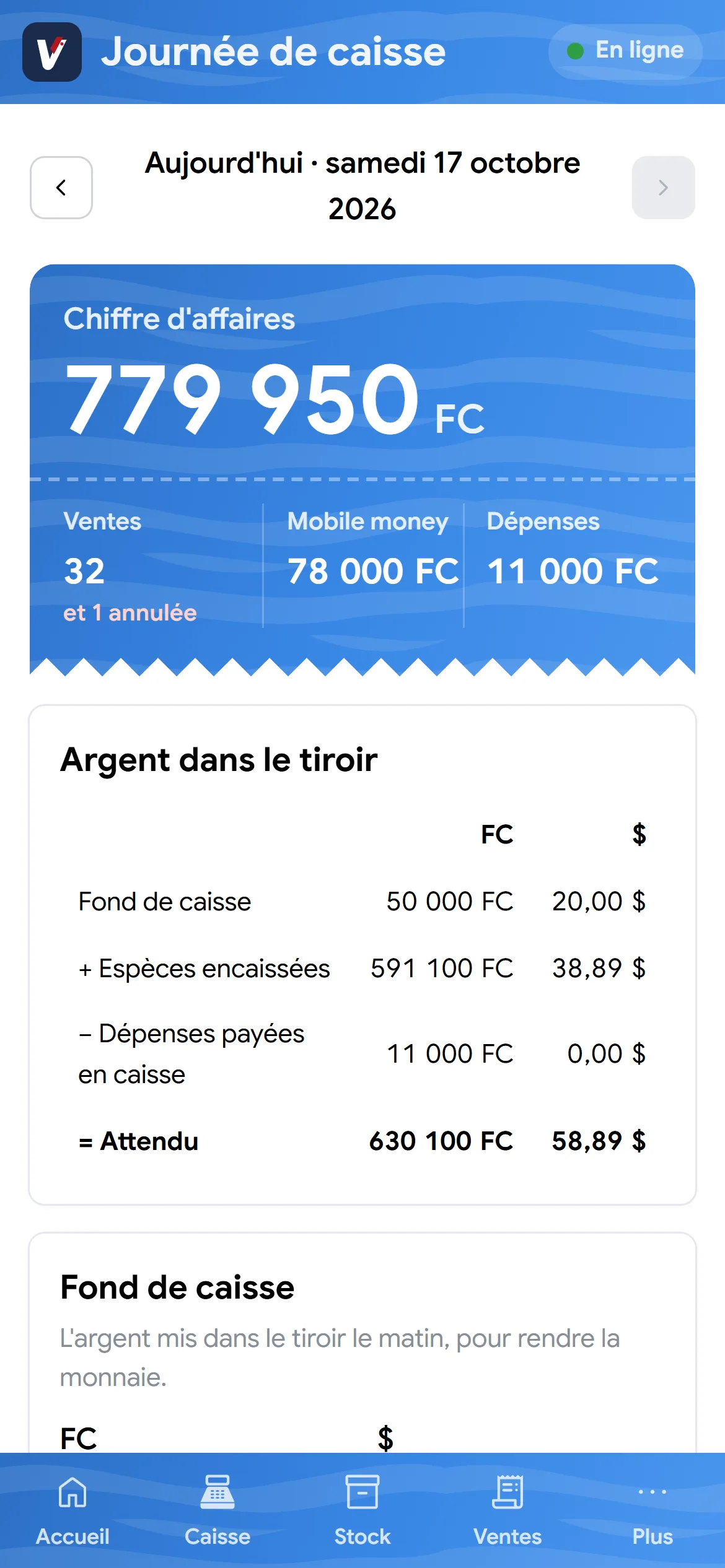
Before the first sale, record the money put in the drawer to give change: in the evening, vitePOS will know what should be there.
- Go to Plus → Journée de caisse (till day).
- Under « Fond de caisse » (float), enter the amounts in FC, $ and, if needed, €.
- Tap « Enregistrer le fond de caisse ».
At a glance
The home screen, your day's ticket
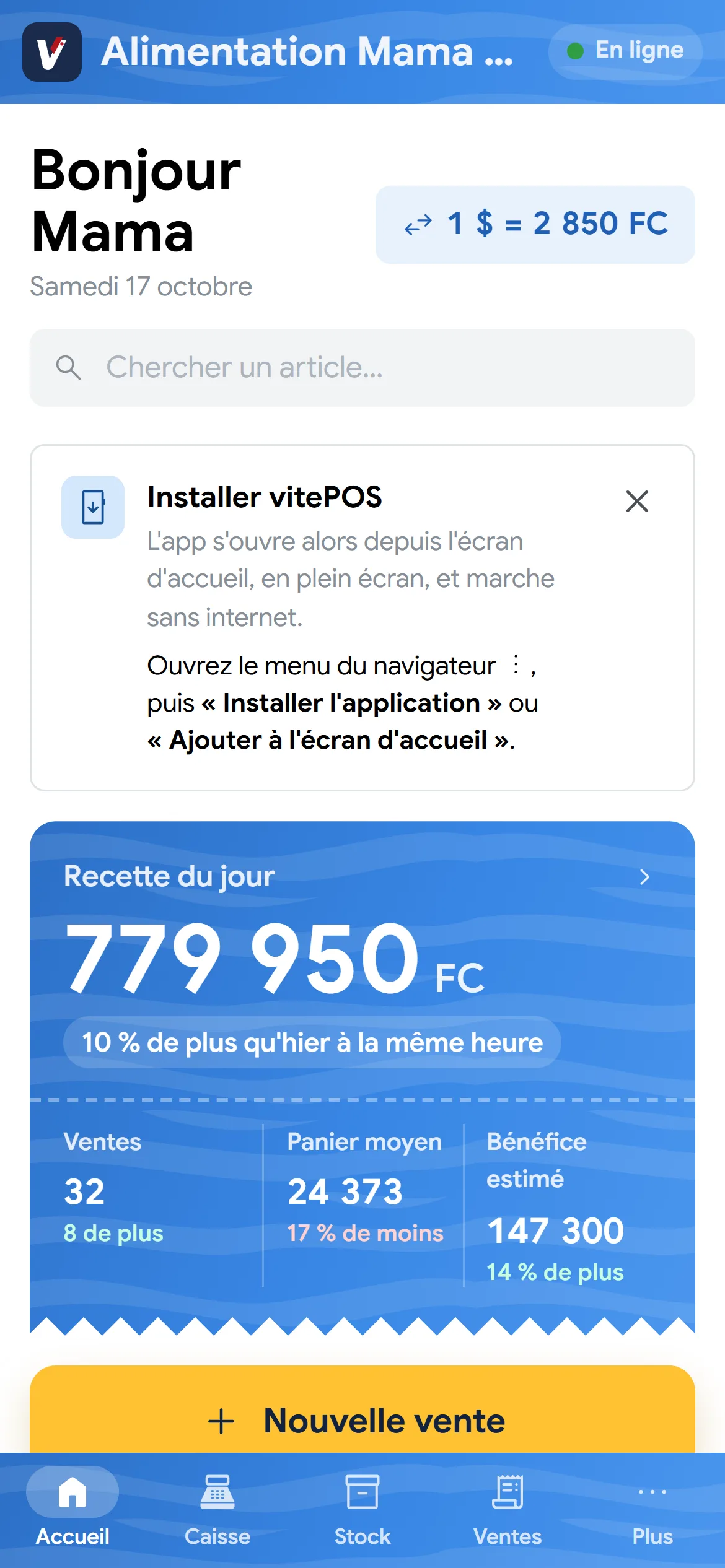
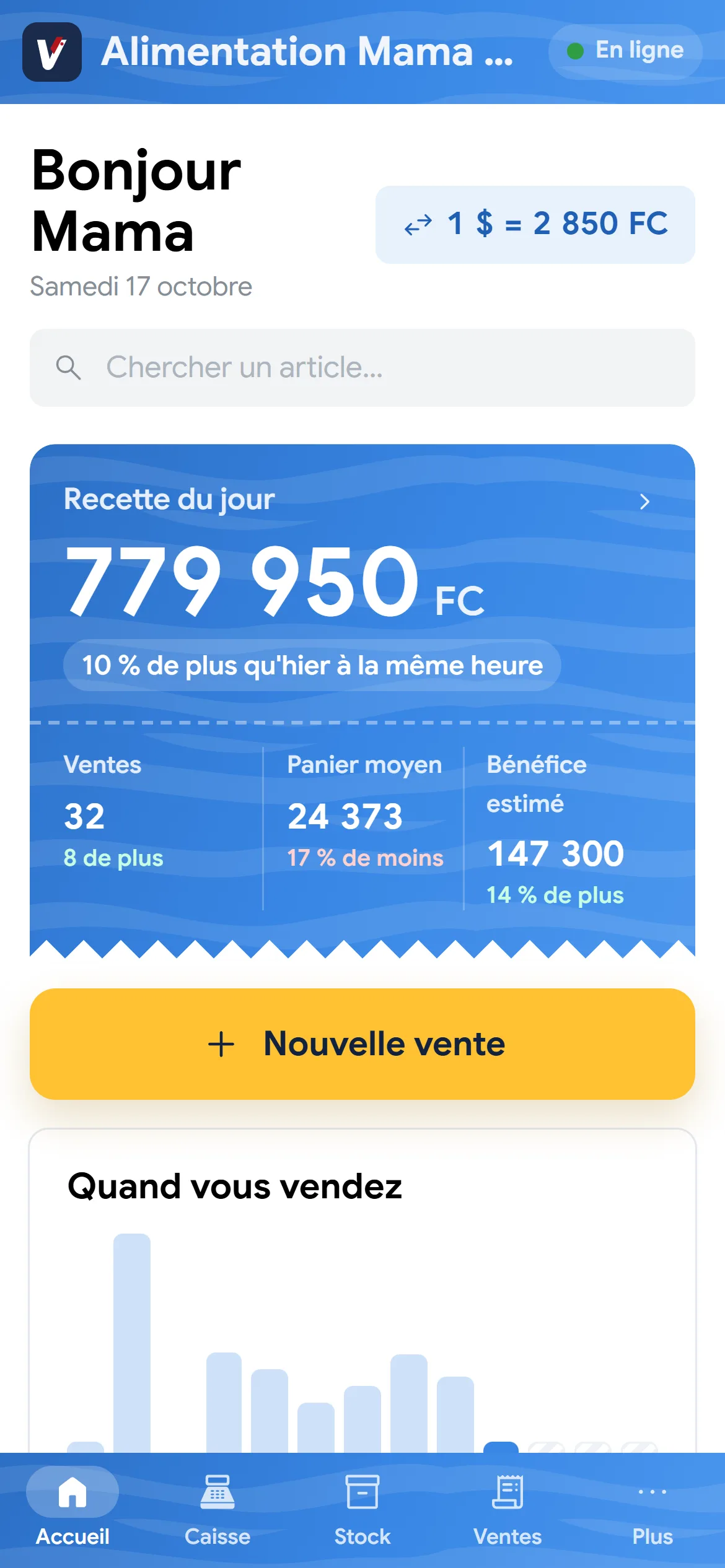
When you open the app, the day's takings appear as a blue till ticket: what you have sold, and whether it is better or worse than yesterday.
- « Recette du jour » (today's takings): total sales since this morning, in large type. A seller sees « Vos ventes du jour » (your sales today): only their own.
- Just below, the comparison « … % de plus qu'hier à la même heure » (… % more than yesterday at the same time): at 11 am it compares with yesterday at 11 am, not with the whole of yesterday.
- Under the dotted line: the number of Ventes (sales), the Panier moyen (average basket: what a customer spends on average) and the Bénéfice estimé (estimated profit), each with its change.
- « Quand vous vendez » (when you sell): one bar per hour, the current hour in blue. The sentence below gives your busiest hour.
- Further down, « À surveiller » (to watch: items to reorder, batches about to expire) and « Dernières ventes » (latest sales) with time, customer and amount.
Selling
Check out in seconds
Tap or scan the item, take payment in the customer's currency, hand over the receipt. Even without network.
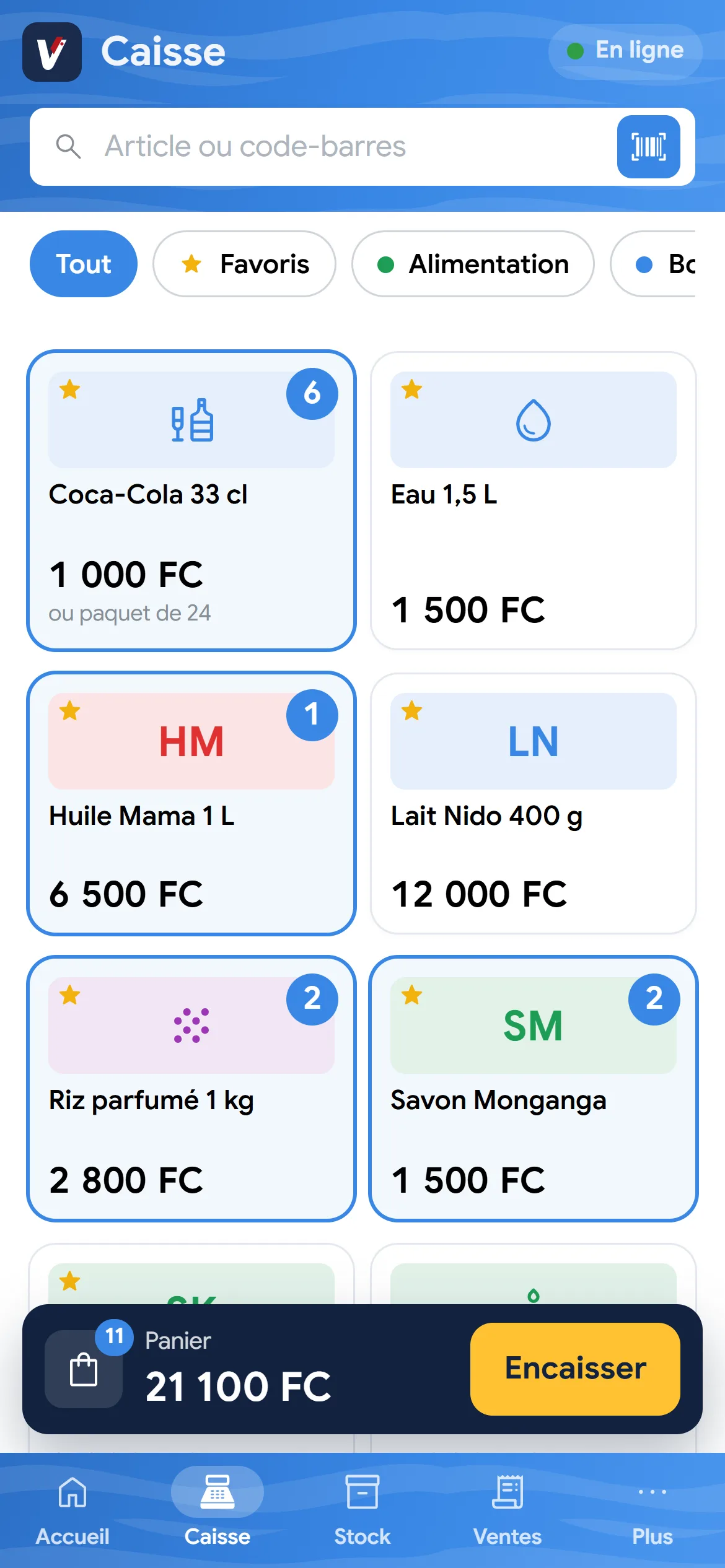
- In Caisse (till), tap the item or scan it: with the camera (button to the right of the search) or a barcode scanner. A blue badge shows how many are already in the cart; low stock shows in orange (« 4 restants », 4 left).
- An item also sold by the pack? The app asks « À l'unité » (single) or « Paquet de 24 ». Scanning the pack sells the pack straight away.
- A phone tracked by IMEI? The app asks which device: scan the IMEI on the box or pick it from the list. The receipt will print the IMEI and the warranty end.
- On a phone, tap « Panier » (cart) in the bottom bar (on a computer, it is on the right): − and + for quantities, a % discount, a customer if you want to track their purchases. Then the yellow « Encaisser » (checkout) button.
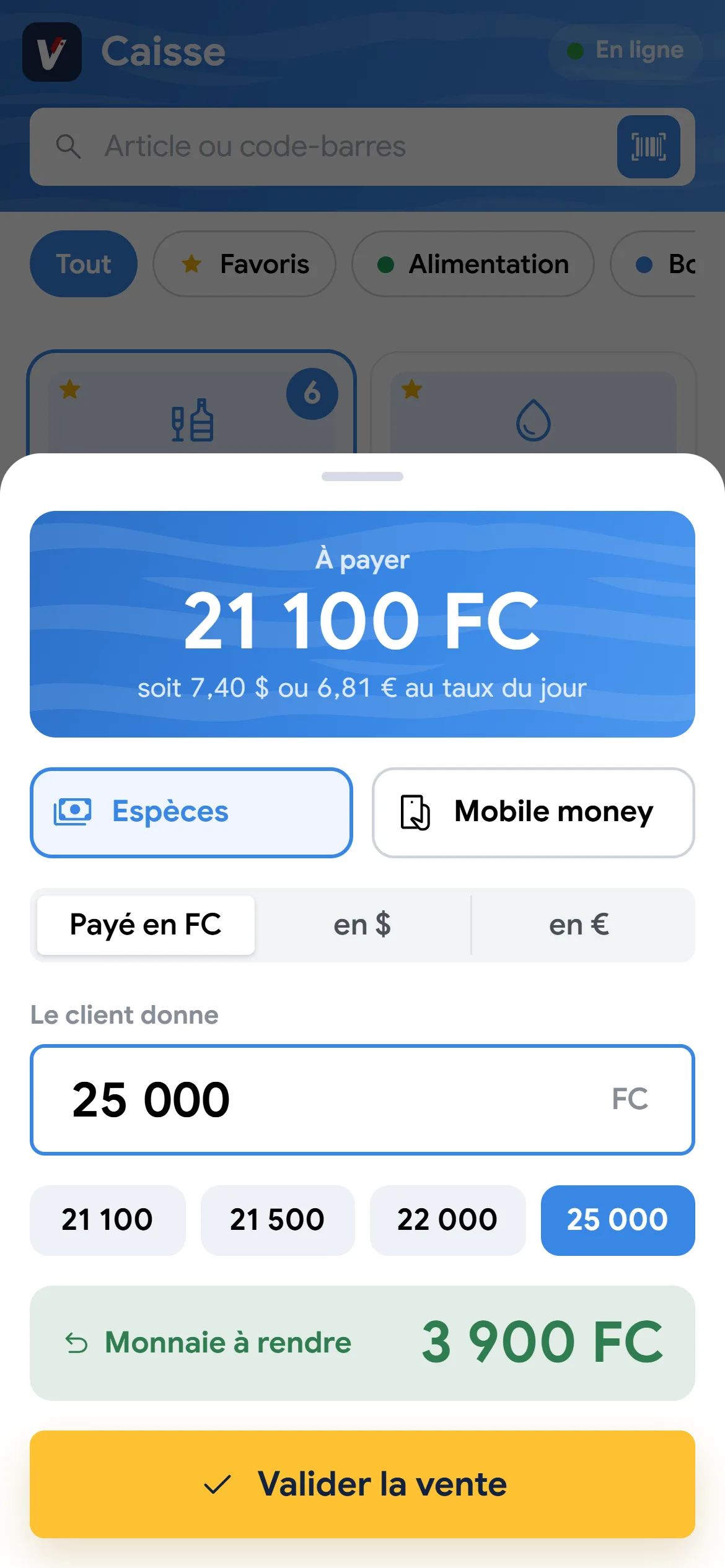
- Choose Espèces (cash) or Mobile money, then the currency: Francs, Dollars or Euros. Tap a suggested note or type the amount received: the app shows « À rendre » (change due). Tap « Valider la vente » (confirm the sale).
After the sale
The receipt, printed or sent
Every sale has its receipt and number. The customer gets it on paper or on their phone.
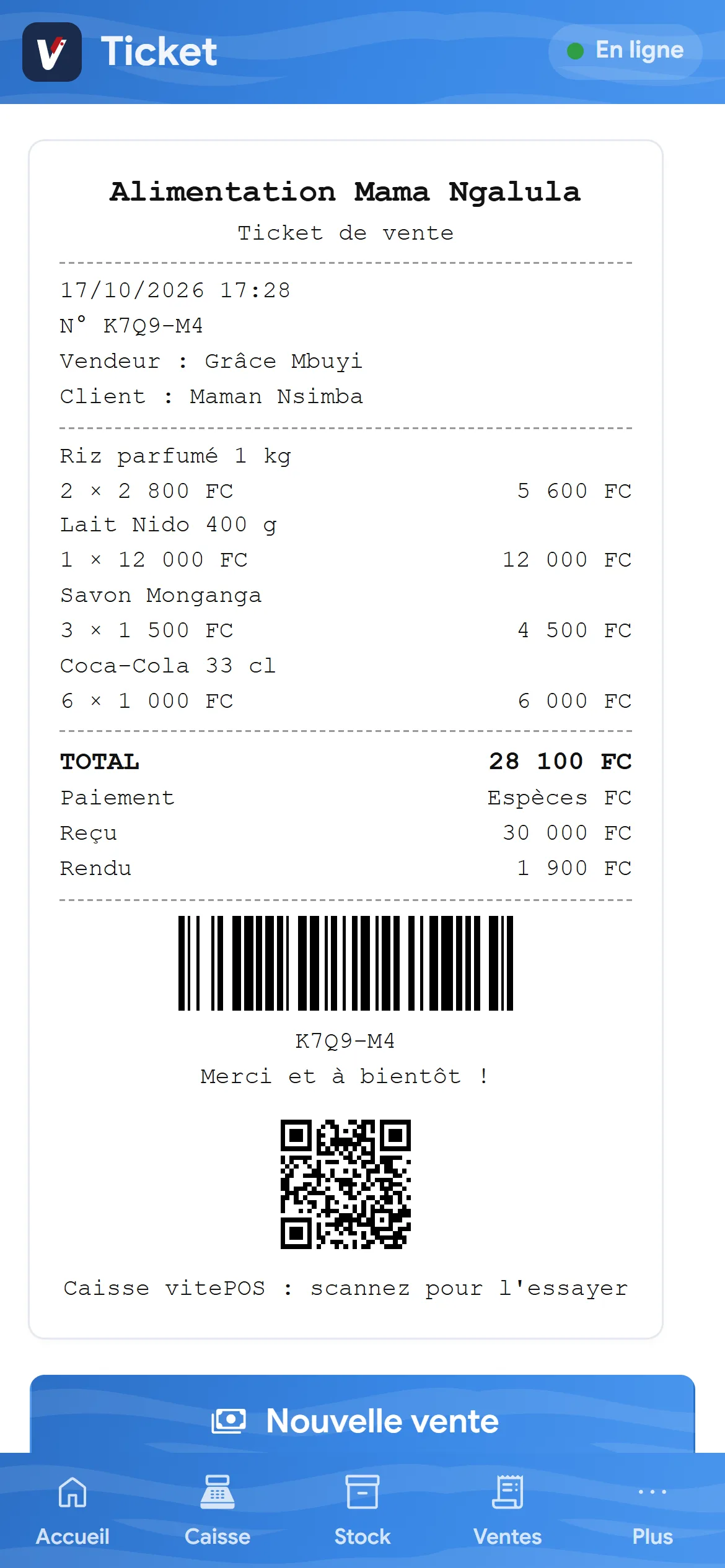
- After « Valider la vente », the receipt shows: « Imprimer » (print) on a receipt printer, or « Partager (WhatsApp, SMS…) » (share).
- The « Envoyé » (sent) badge means the sale reached the cloud; « En attente d'envoi » means it will go when the network is back.
- A mistake? The manager or owner taps « Annuler la vente » (cancel the sale) the same day, with a reason: the items go back into stock.
The paper receipt
Connect the printer and personalise the receipt
A small Bluetooth or USB receipt printer is enough. Your logo, address and QR code print on every receipt.
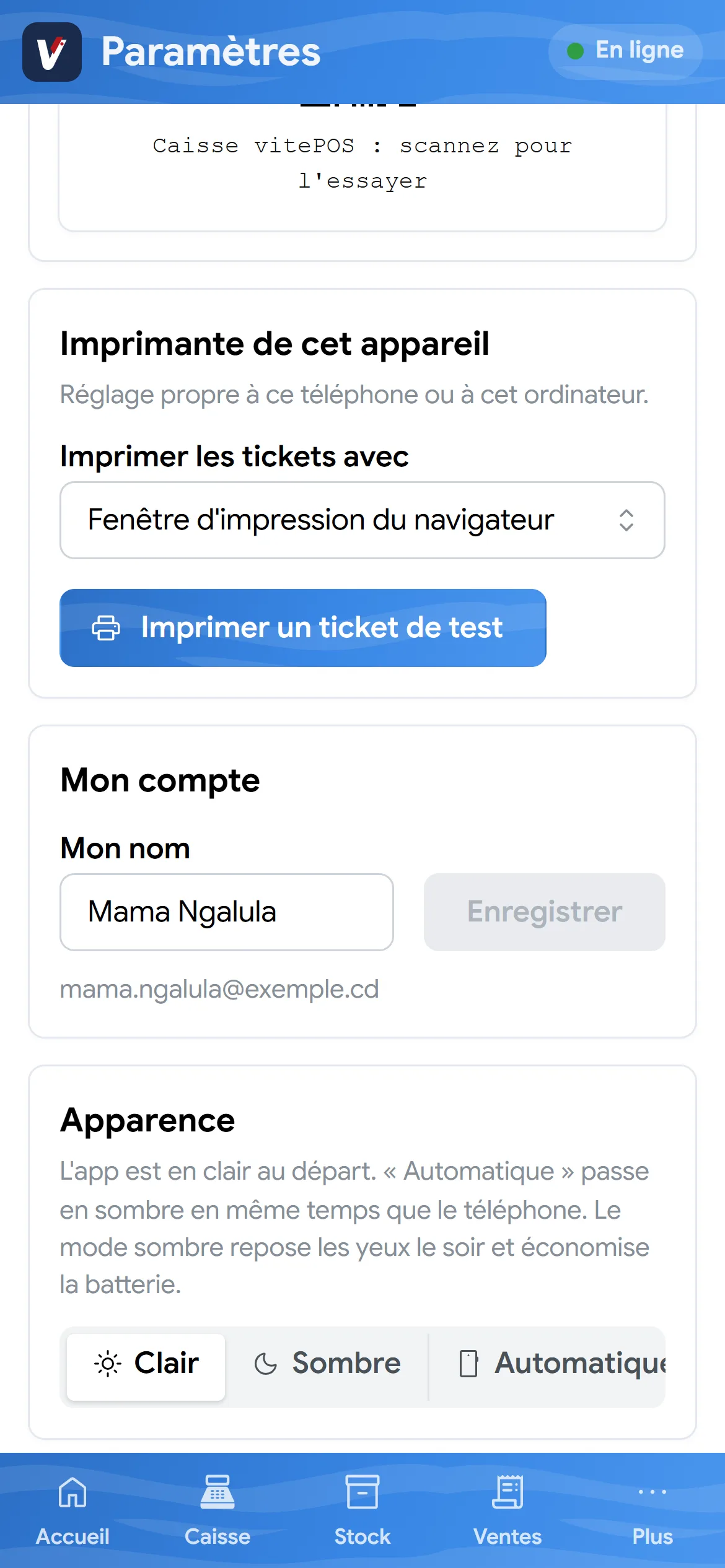
- In Plus → Paramètres → Imprimante de cet appareil (this device's printer), choose « Imprimer les tickets avec » (print receipts with): Bluetooth printer, USB printer (computer), the RawBT app on Android or Thermer on iPhone.
- Switch the printer on, tap « Choisir l'imprimante » (choose the printer) and select it. Then « Imprimer un ticket de test » (print a test receipt).
- Under Mon activité (my business), choose the paper width (58 mm or 80 mm) and, if you like, « Imprimer le ticket automatiquement après chaque vente » (print automatically after each sale).
- Under Ticket de caisse (receipt): « Ajouter un logo » (add a logo), address, phone, RCCM, ID NAT, tax number, a QR code (WhatsApp, Facebook…) and the closing message. The preview updates as you type.
Your regulars
Know your loyal customers
The restaurant round the corner, the hotel, the mum who comes every day: record them once and find everything they have bought.
- In Plus → Clients (customers), tap « Ajouter » (add): name, phone and notes (habits, delivery address…).
- Or straight from the till: in the cart, « Ajouter un client (fidélité, crédit) » (add a customer), then « + Nouveau client » (new customer).
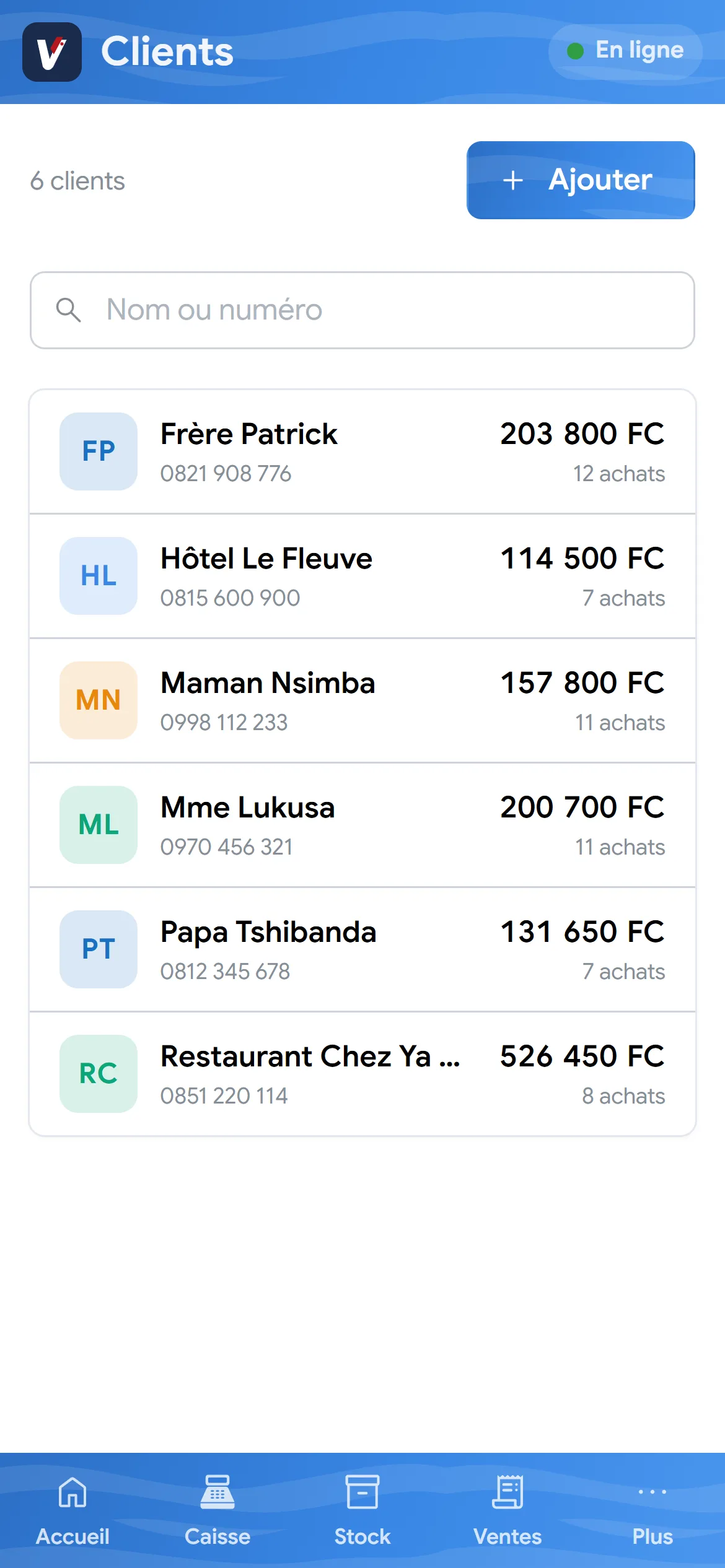
- The list shows, for each one, the total spent and the number of purchases. Search by name or number.
- Tap a customer: the « Achats » (purchases) tab lists their receipts, and « Appeler » (call) dials them.
Money going out
Record every expense
The moto-taxi, phone credit, the sack of sugar bought in a hurry: every expense recorded is one less gap in the till at night.
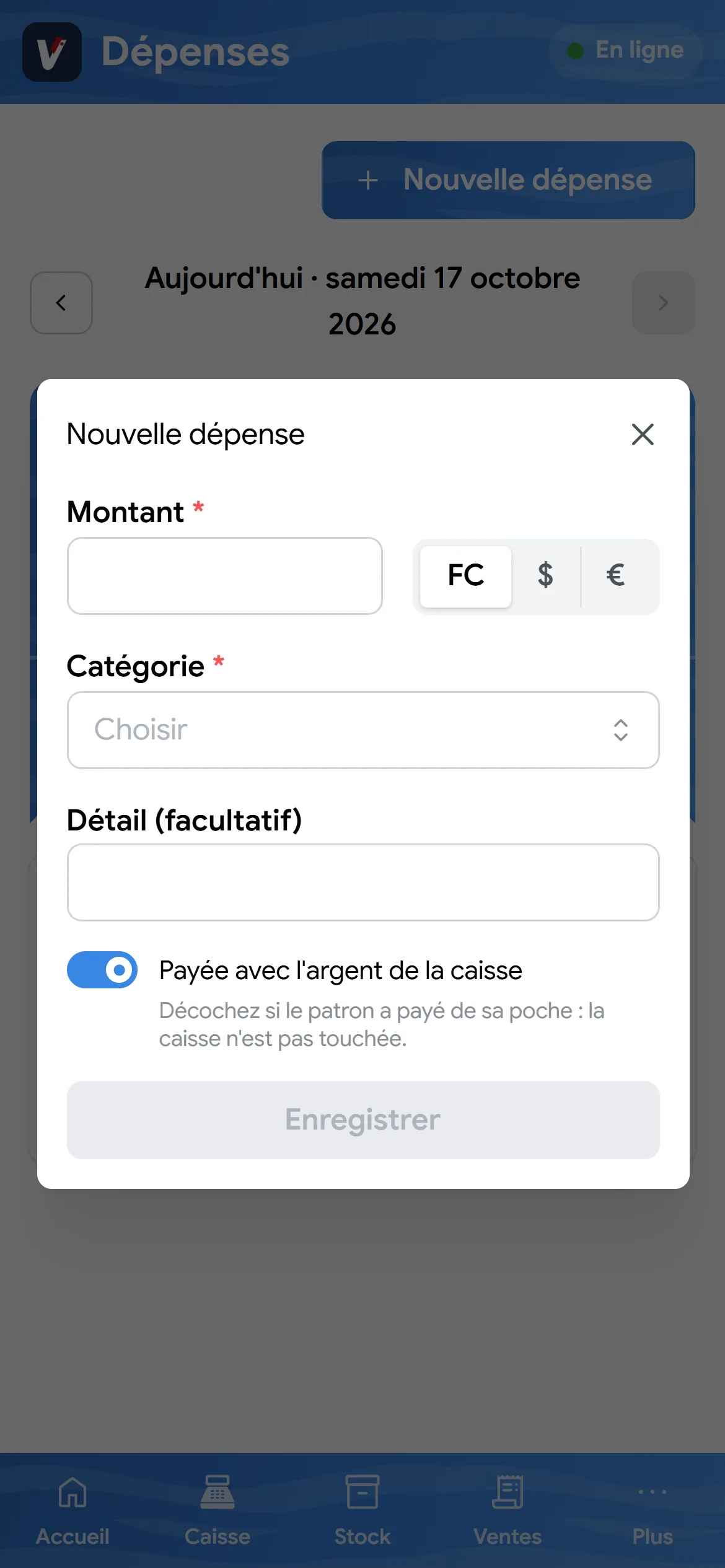
- In Plus → Dépenses (expenses), tap « Nouvelle dépense ».
- Enter the amount and its currency, the category and, if you like, a detail.
- Keep « Payée avec l'argent de la caisse » (paid from the till) ticked if the money leaves the drawer. Untick it if the owner paid out of pocket.
- Tap « Enregistrer » (save).
In the evening
Close the day with no surprises
vitePOS knows what should be in the drawer. You count, it compares: any gap stands out.
- In Plus → Journée de caisse, look at « = Attendu » (expected): float + cash taken − expenses paid from the till.
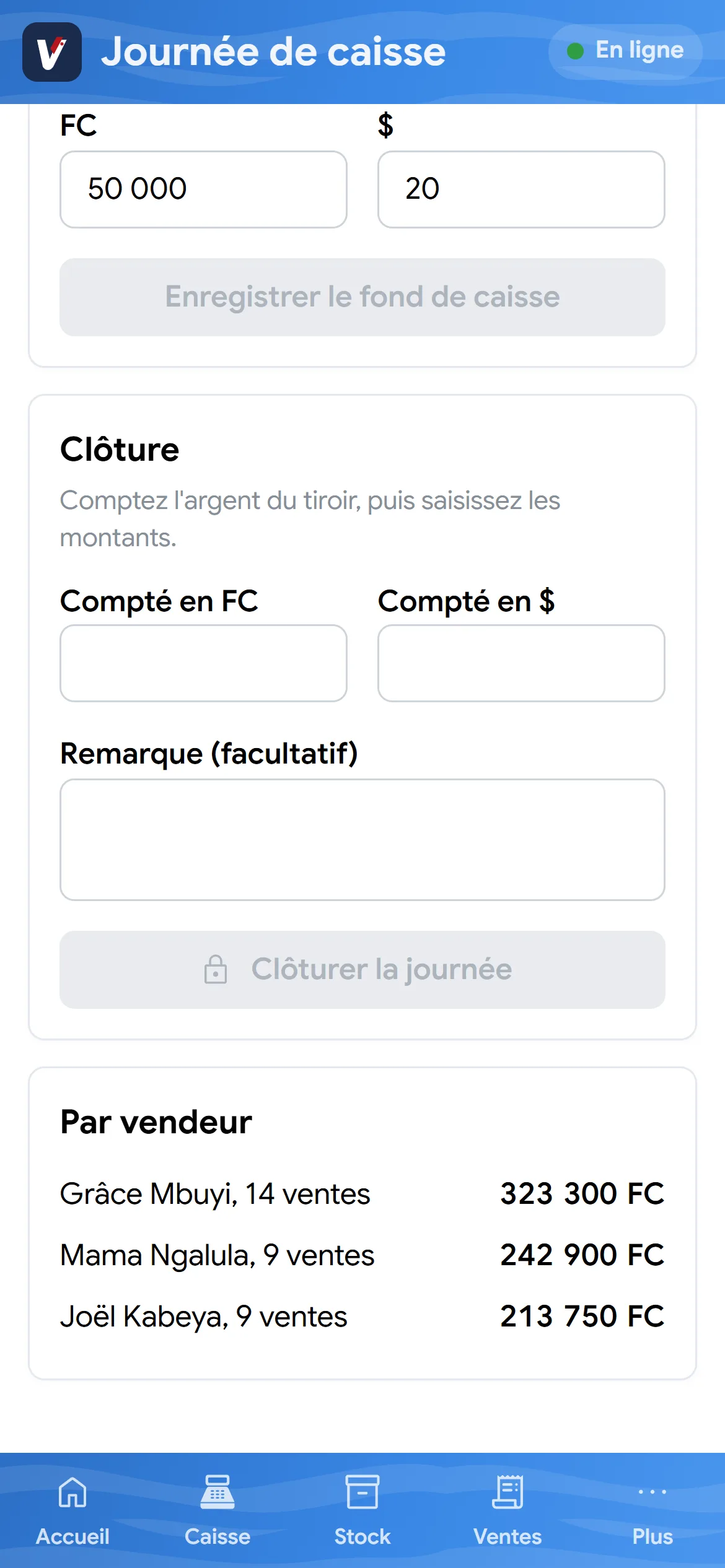
- Count the money in the drawer and enter it under « Clôture » (closing): Compté en FC and Compté en $ (counted in FC, in $). A € column only appears if euros came in or went out that day.
- As soon as you type, the Écart (difference) appears: green if the till is right, orange if there is too much, red if money is missing.
- Add a note if needed, then tap « Clôturer la journée » (close the day).
- The summary shows Attendu, Compté and Écart (expected, counted, difference), and sales « Par vendeur » (per seller) below.
The history
Find a sale
A customer comes back with a question, a lost receipt, a broken device: every sale is there, day by day.
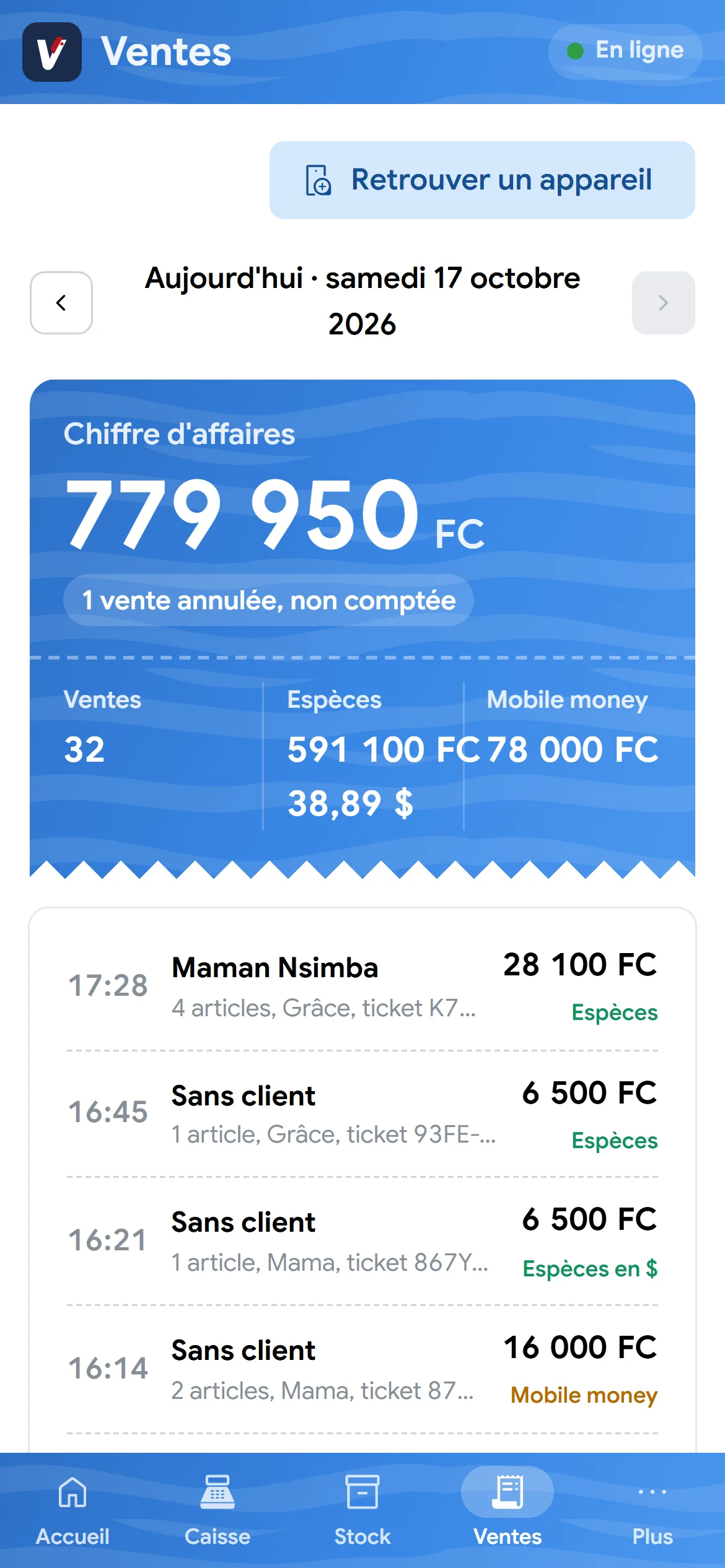
- In Ventes (sales), the arrows at the top change the day. The blue ticket gives the revenue, the number of sales, Espèces (cash, one line per currency) and Mobile money.
- Each line starts with the time, then the customer (or « Sans client », no customer), the seller and the receipt number.
- A cancelled sale carries the red « Annulée » (cancelled) label and does not count in the total.
- Tap a sale to see its receipt again, reprint it or resend it.
- Selling phones? « Retrouver un appareil » (find a device), at the top, looks up an IMEI: the sale, the customer and the end of the warranty.
Once a month
Stocktaking, shelf by shelf
Count what is really on the shelves, see what is missing and what it costs, before correcting the stock.
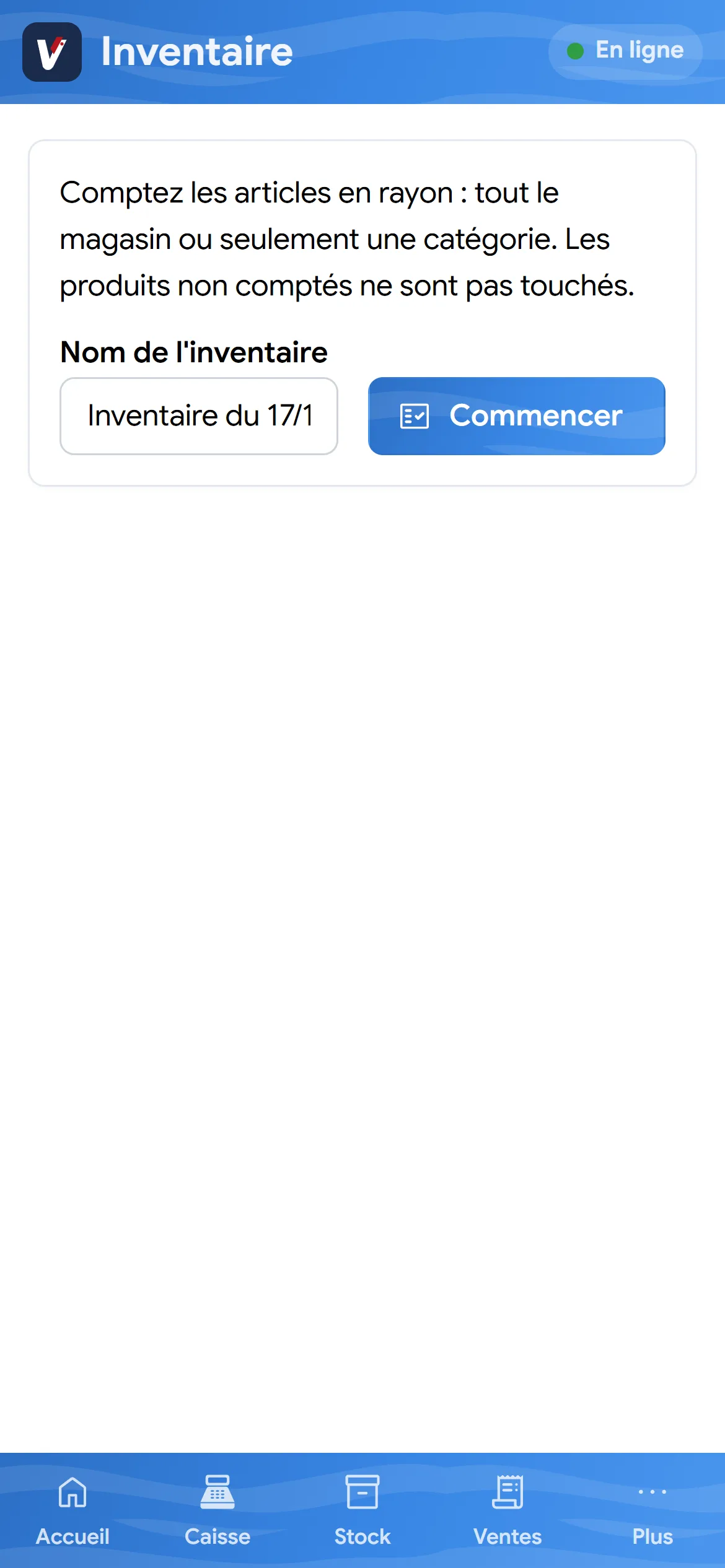
- In Plus → Inventaire (stocktake), give it a name, choose the whole store or one category, then « Commencer » (start).
- Scan or search each item and enter the quantity counted. Several people can count at the same time.
- Tap « Vérifier et valider »: the app shows the gaps and their value. « Valider l'inventaire » corrects the stock.
For the owner
Reports, even from afar
On your phone, wherever you are: what sold, what you earned, what sells best.
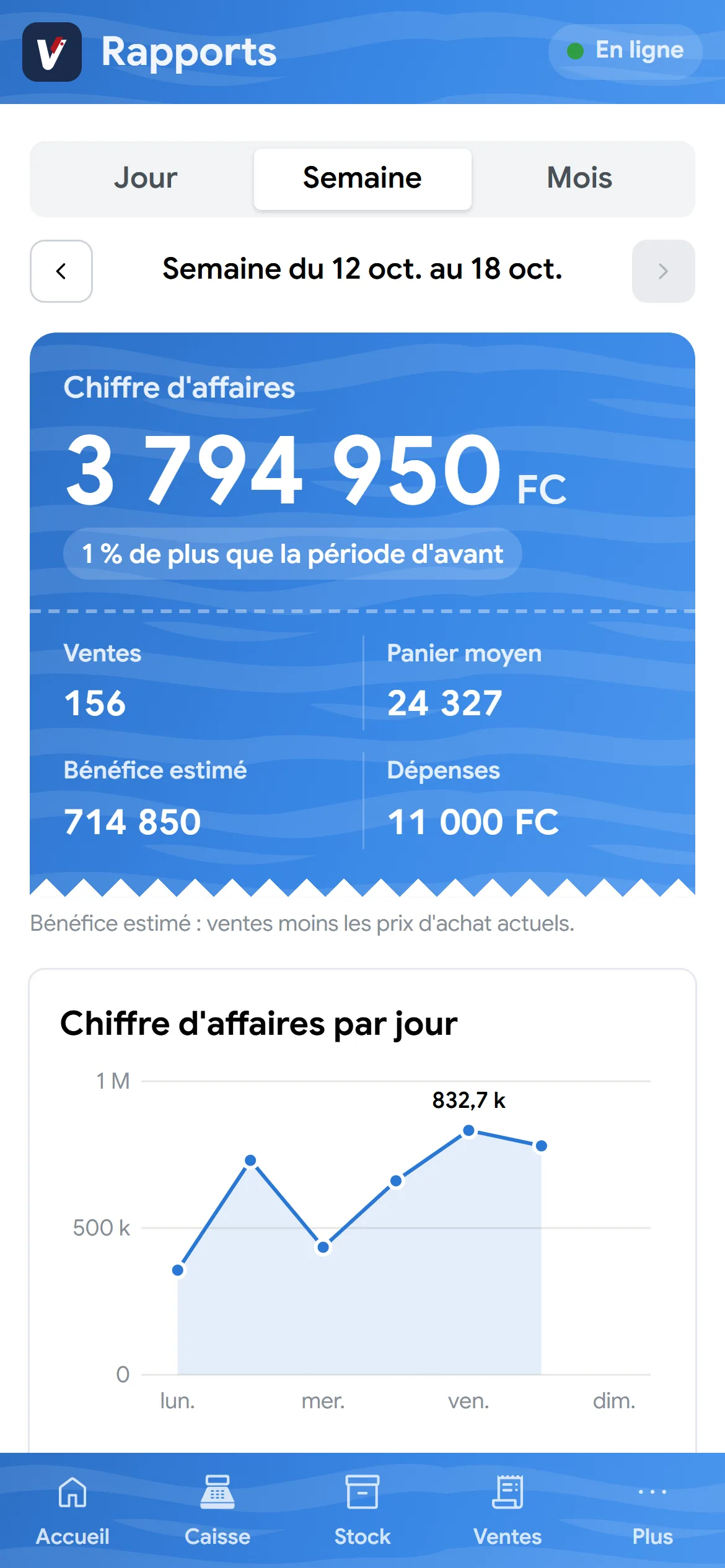
- In Plus → Rapports (reports), choose Jour, Semaine or Mois (day, week, month) at the top, then the arrows to go back in time.
- The blue ticket gives the revenue and how it compares with the previous period (« 12 % de plus que la période d'avant », 12 % more than the previous period).
- Below: Ventes (sales), Panier moyen (average basket), Bénéfice estimé (estimated profit: sales minus purchase prices) and Dépenses (expenses).
- Chiffre d'affaires par jour (revenue per day): the curve for the week or month. Meilleurs produits (best sellers): the top 10 by revenue. Moyens de paiement (payment methods): cash, mobile money and discounts.
- At the very bottom, Ventes et dépenses, six derniers mois (sales and expenses, last six months): a blue bar for sales, an orange one for expenses.
No network
Network down? Keep selling
Sales, stock, expenses: everything is saved on the phone, then goes online by itself when the network returns.
- Tap your badge (your initials, top right): « En ligne, tout est envoyé » (online, all sent), « Hors ligne » (offline) or « Envoi en cours » (sending) with the number of entries waiting.
- Two tills offline at the same time? Their sales add up without overwriting each other.
- You only need the network to create an account, join a business and manage the team.